How to use the GEO Community Space
Getting Started
Access to the GEO Community Space is restricted to contributors of the GEO Work Programme. If you do not see the GEO Community Space menu item in your GEO account, please send an email to geo-wp@geosec.org to request access, You can browse the different GWP Activities by theme on our solutions page.
Sign in
Access your GEO account using your registered email address and password on the sign in page. If you are unsure how to sign in or encounter any issues during the sign in process, please refer to this page for detailed guidance.
Account Dashboard
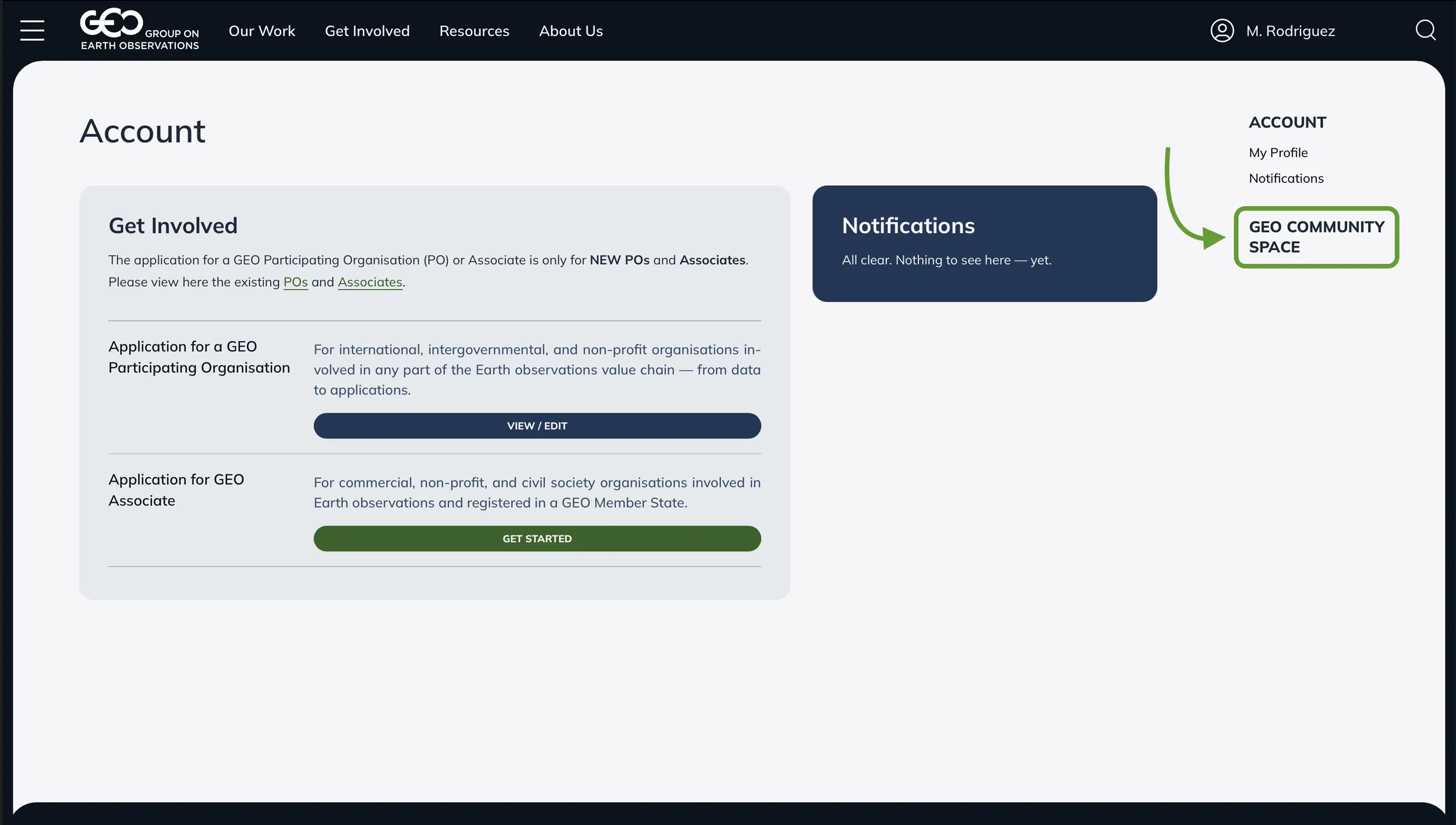
After signing in, you'll see your Account dashboard. Click the GEO Community Space item in the top-right menu.
GEO Community Space
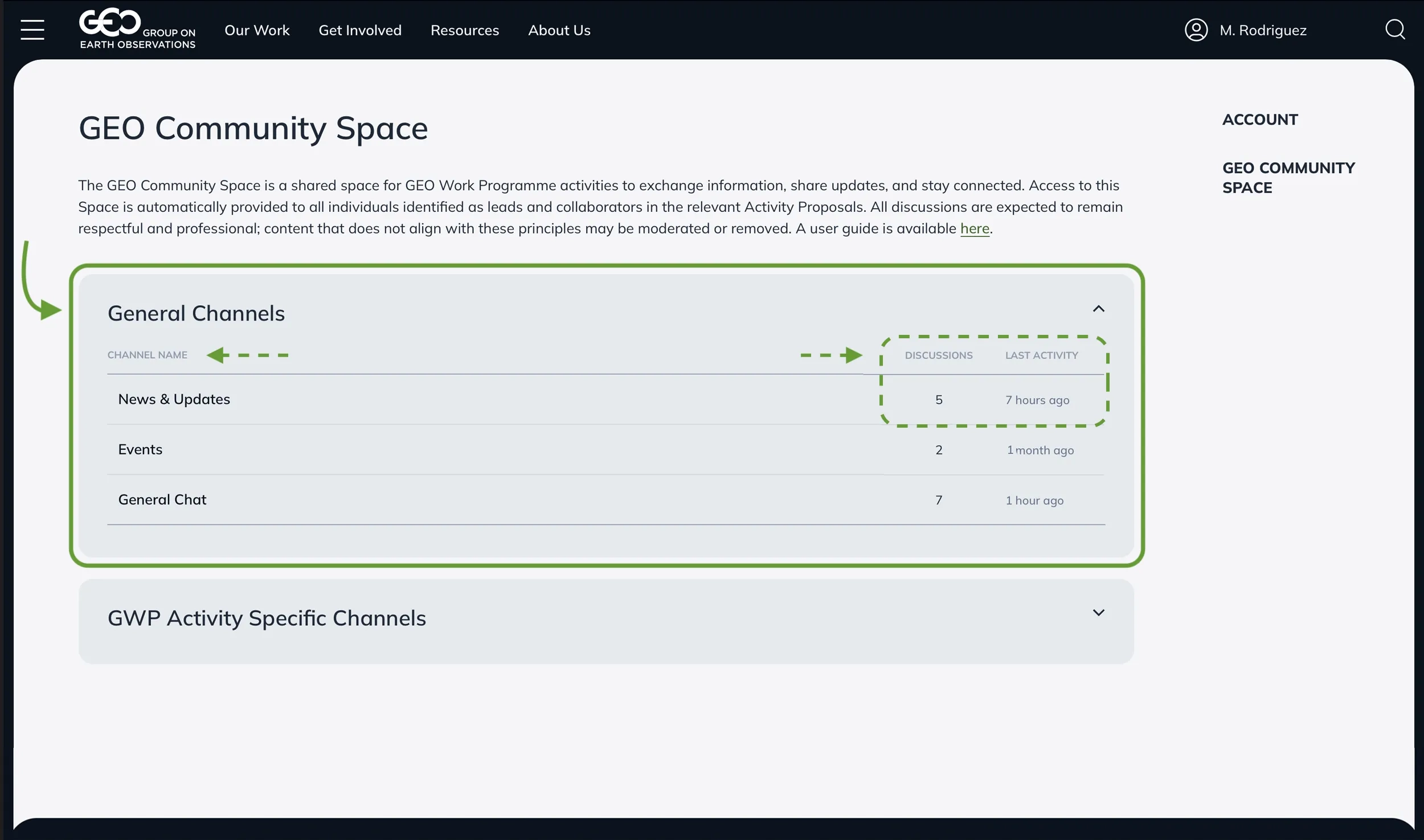
The GEO Community Space (GCS) is divided into sections. Each section can have different channels. You will only have access to your sections and channels, depending on your role in the GEO Community. Each channel provides an overview of the active discussions and the latest contributions within that channel.
Navigating a Channel
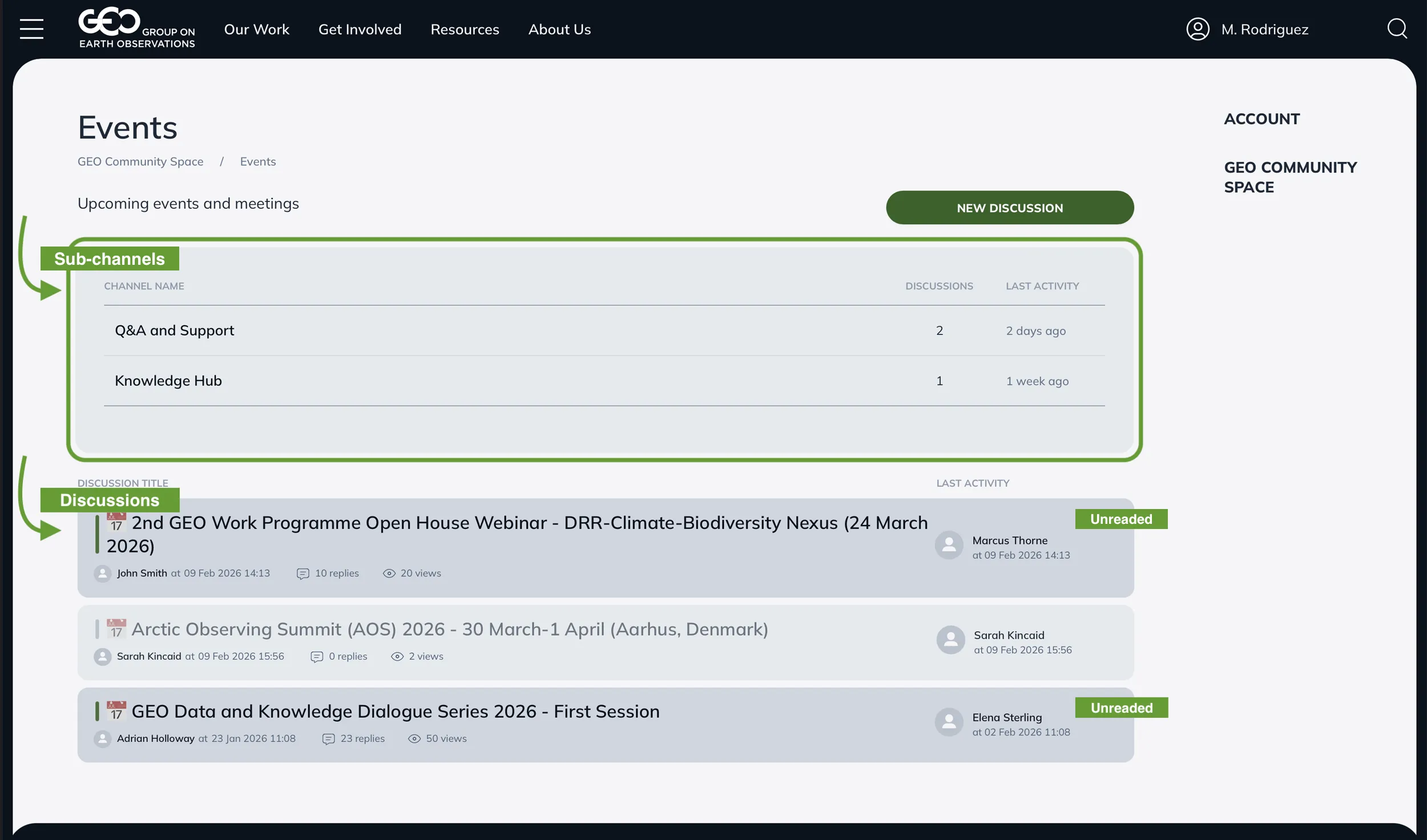
Channels serve as dedicated environments for specific discussions around the theme and support a nested structure.
Each discussion thread displays: the lead author, creation date, number of replies and views, and author of the last post. Unread discussions are darker and highlighted with a vertical green bar on the left.
Use the Breadcrumb path at the top of the interface to navigate between various levels of the GCS.
How to Participate in a Discussion
Click on any discussion title to open the discussion thread. The original post is at the top, followed by chronological replies from other users.
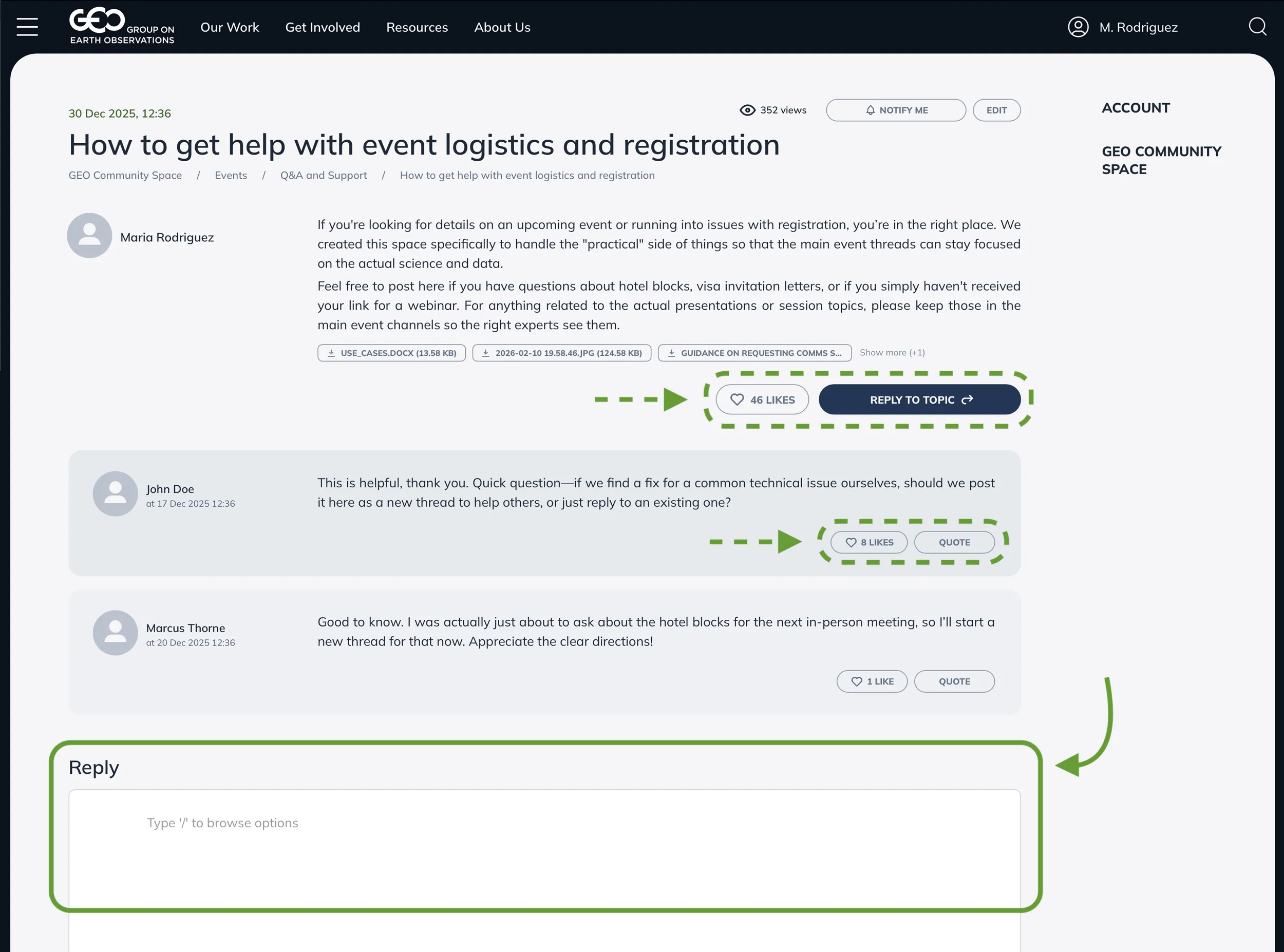
You can "Like" or reply to any post. To reply to the main post click the "Reply to Topic" button to jump directly to the text editor at the bottom, or simply start typing in the editor field. To reply to a specific user posting, click the "Quote" button under their post.
How to Use the Text Editor and Add Attachments
As you type, a "+" icon will appear on the left. Click it to access formatting options such as Headings, Quotes, Lists, or Tables.
Highlight any word or phrase to bring up a pop-up menu for Bold, Italic, or Hyperlink options. For adding a link, click the link icon in the pop-up and paste your URL.
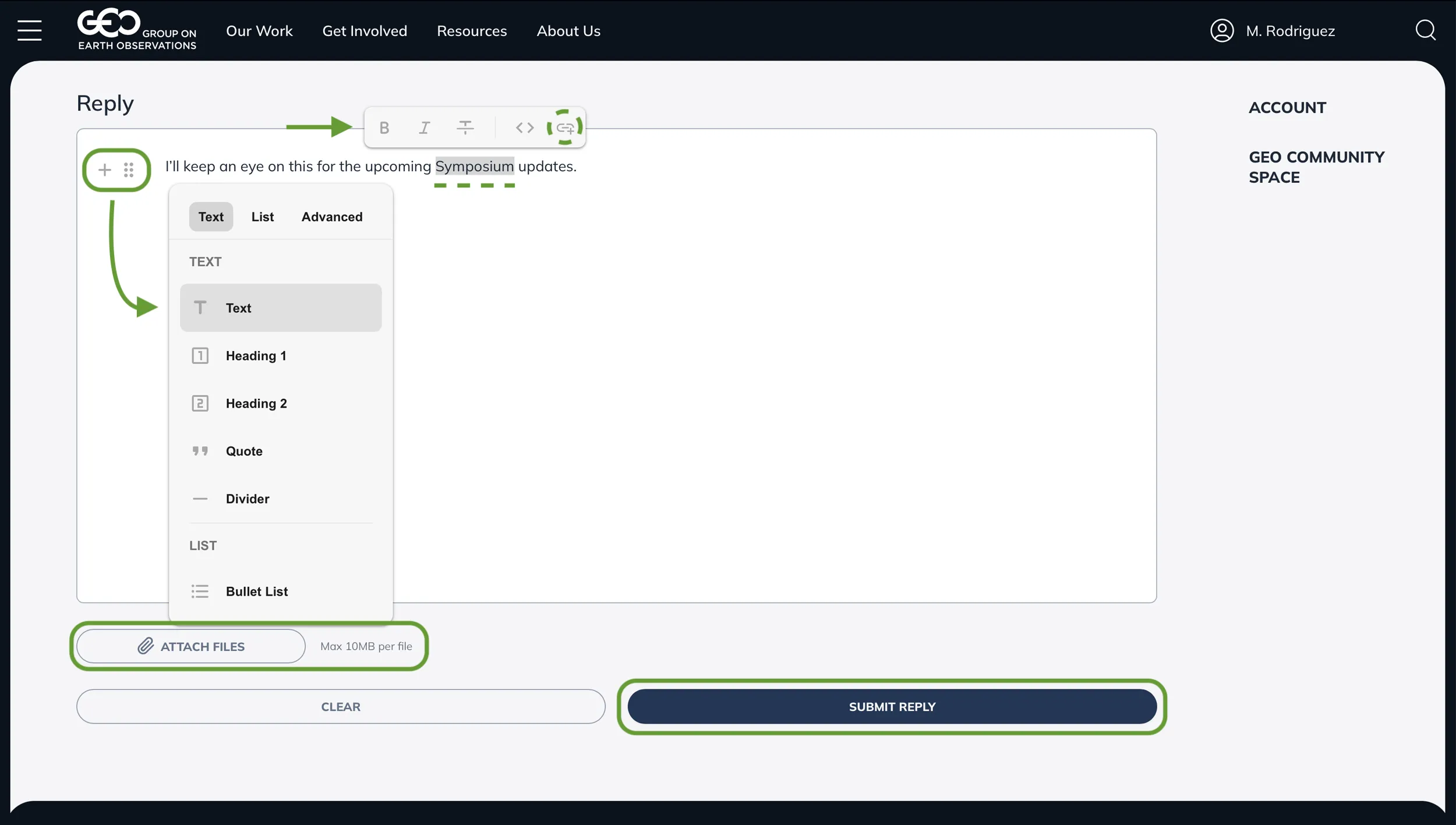
You can attach documents to your post by clicking the "Attach Files" button (Max 10MB per file) below the editor. You also can copy and paste text into the Editor (not all formatting is supported).
Once ready, click "Submit Reply" to publish.
How to Follow Discussions and Get Notified
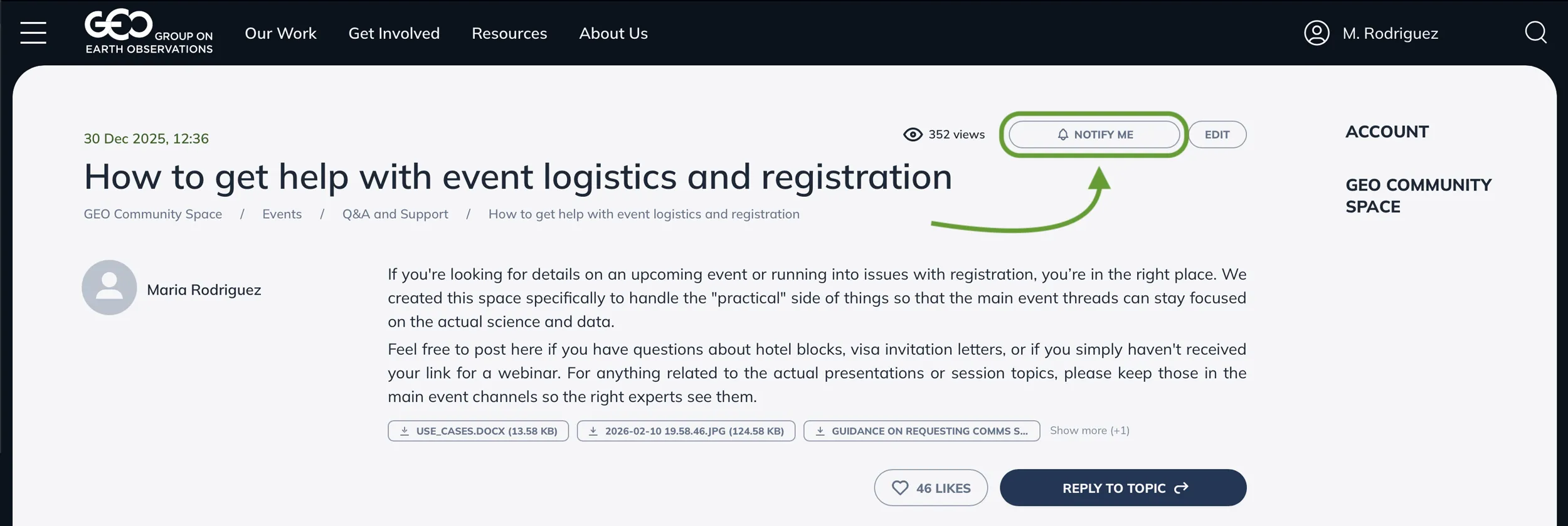
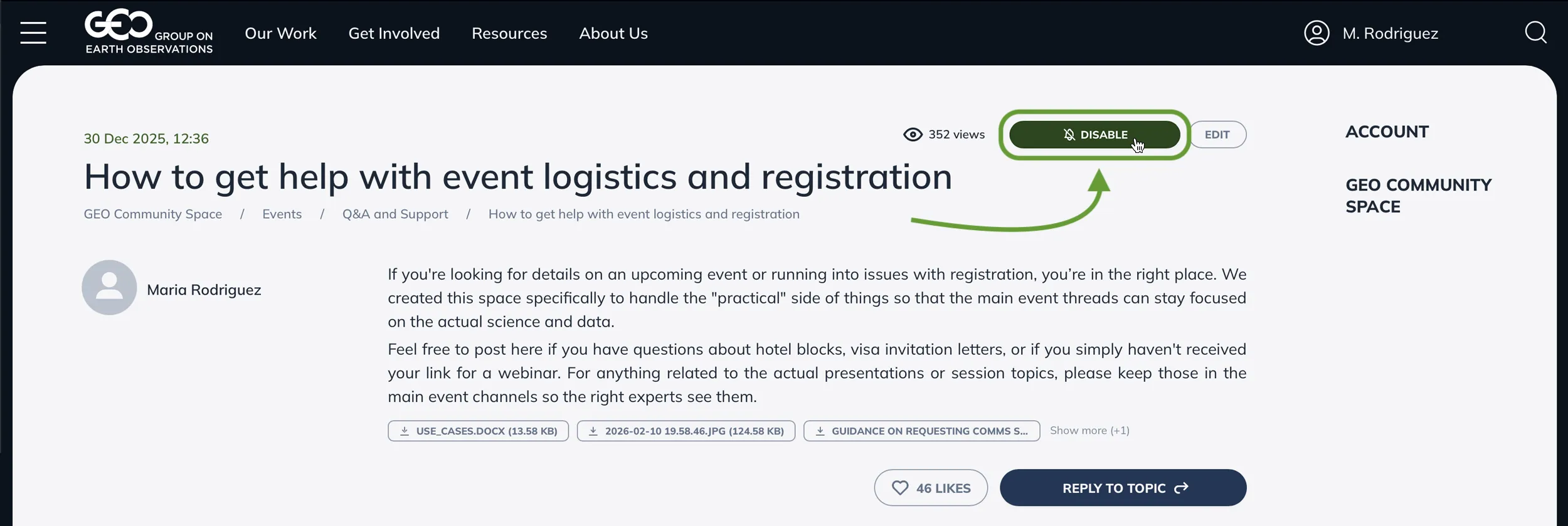
To receive notifications of new postings click the "Notify Me" button at the top of a discussion. To disable notifications of new postings, click the "Disable" button.
By default, you also will be notified If another user quotes you post.
You can change this default behavior and other notification settings in the "Notification Settings" tab under your Profile settings.
How to Create, Edit and Delete a Discussion
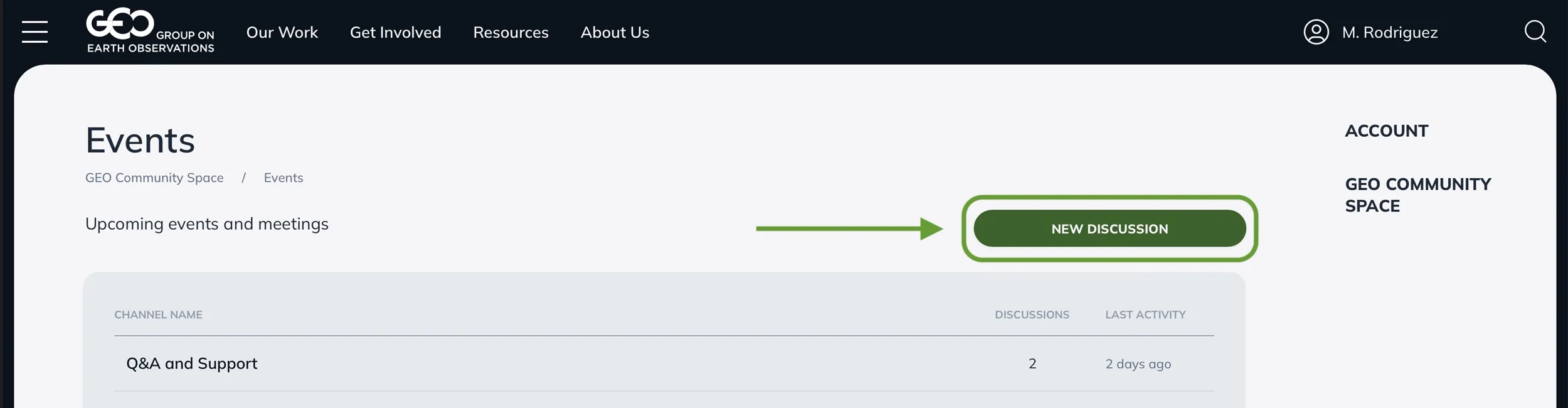
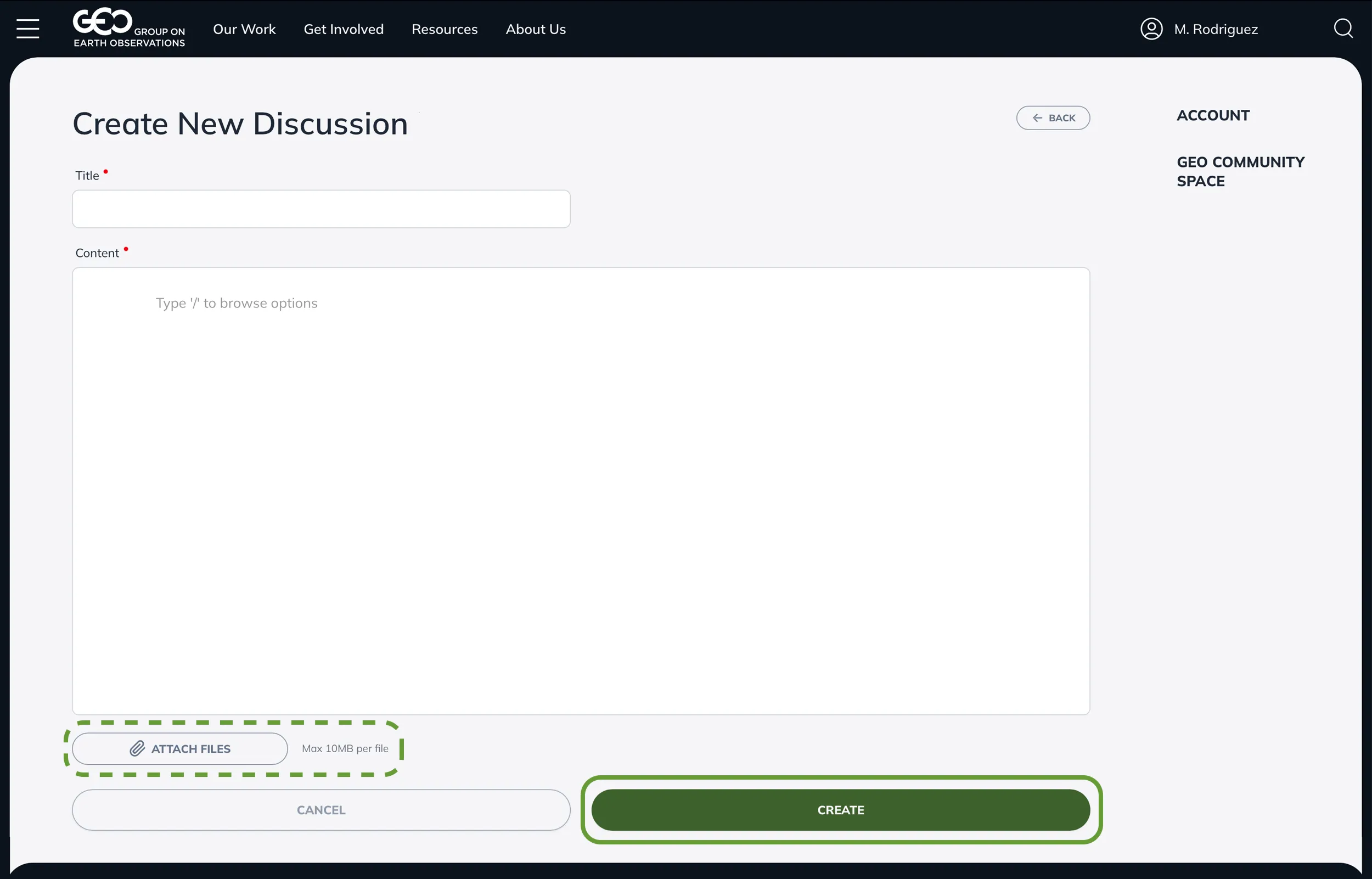
To start a new discussion, click the "New Discussion" button on the channel page. Enter a clear Discussion Title and your message in the Content area. Use "Attach Files" button to attach files if needed, then click "Create".
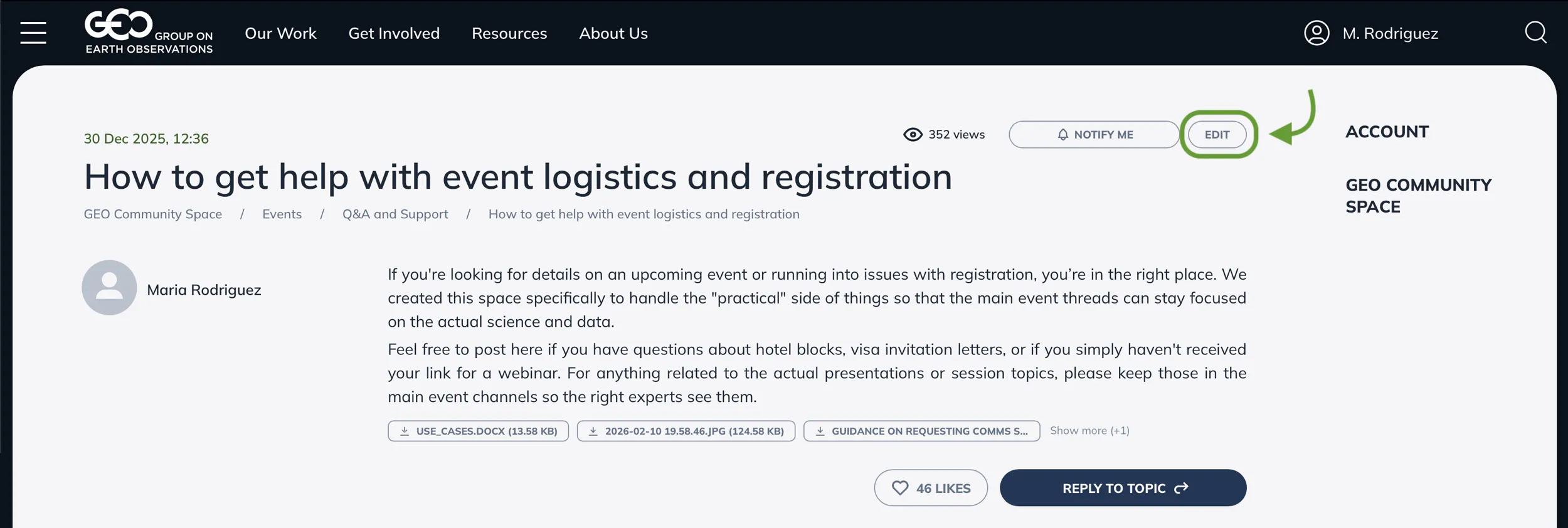
If you need to make changes in your discussion post, click the "Edit" button at the top of your discussion page.
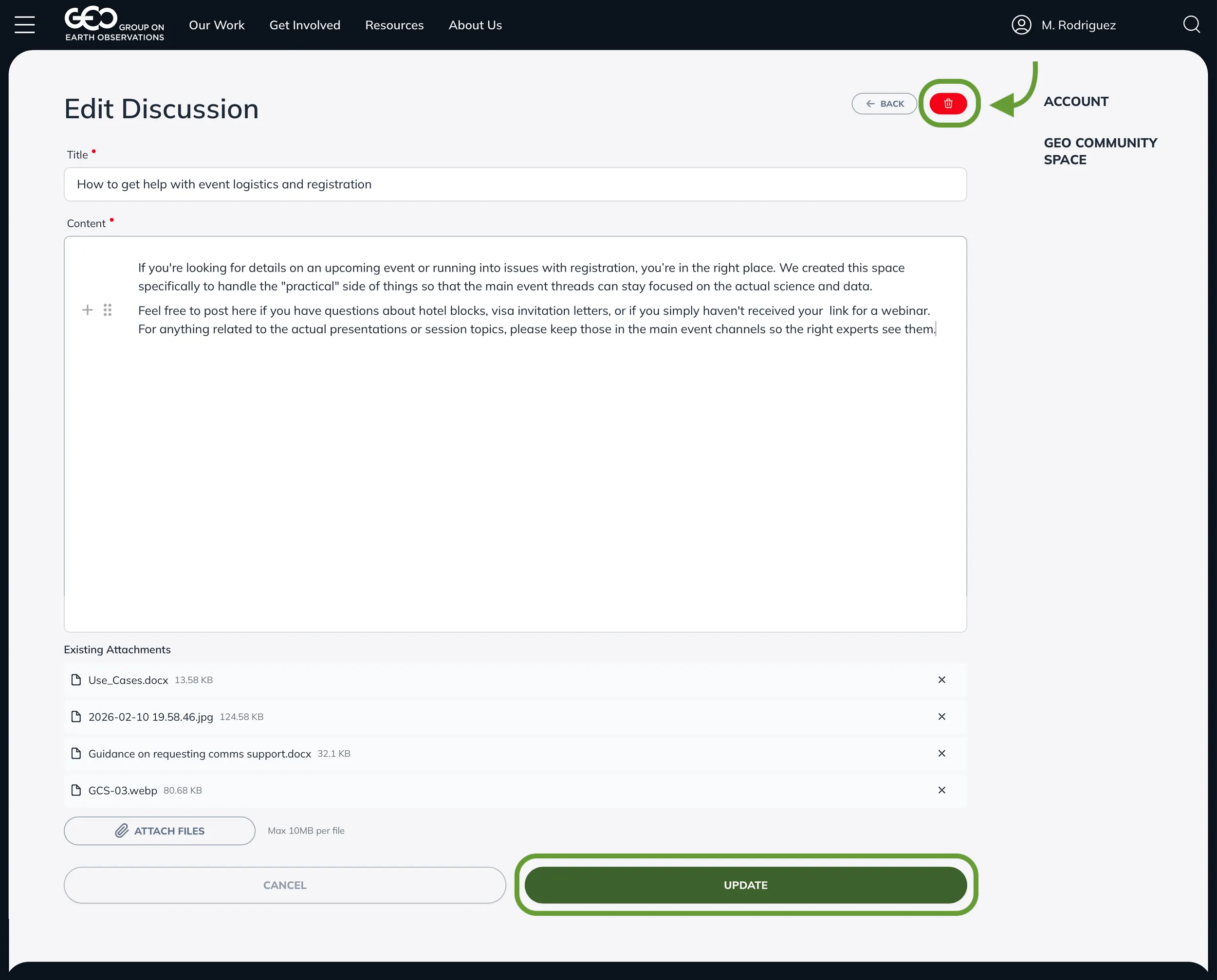
In your edit session you can delete your discussion by clicking the red trash can button.
Accessing and Viewing Notifications
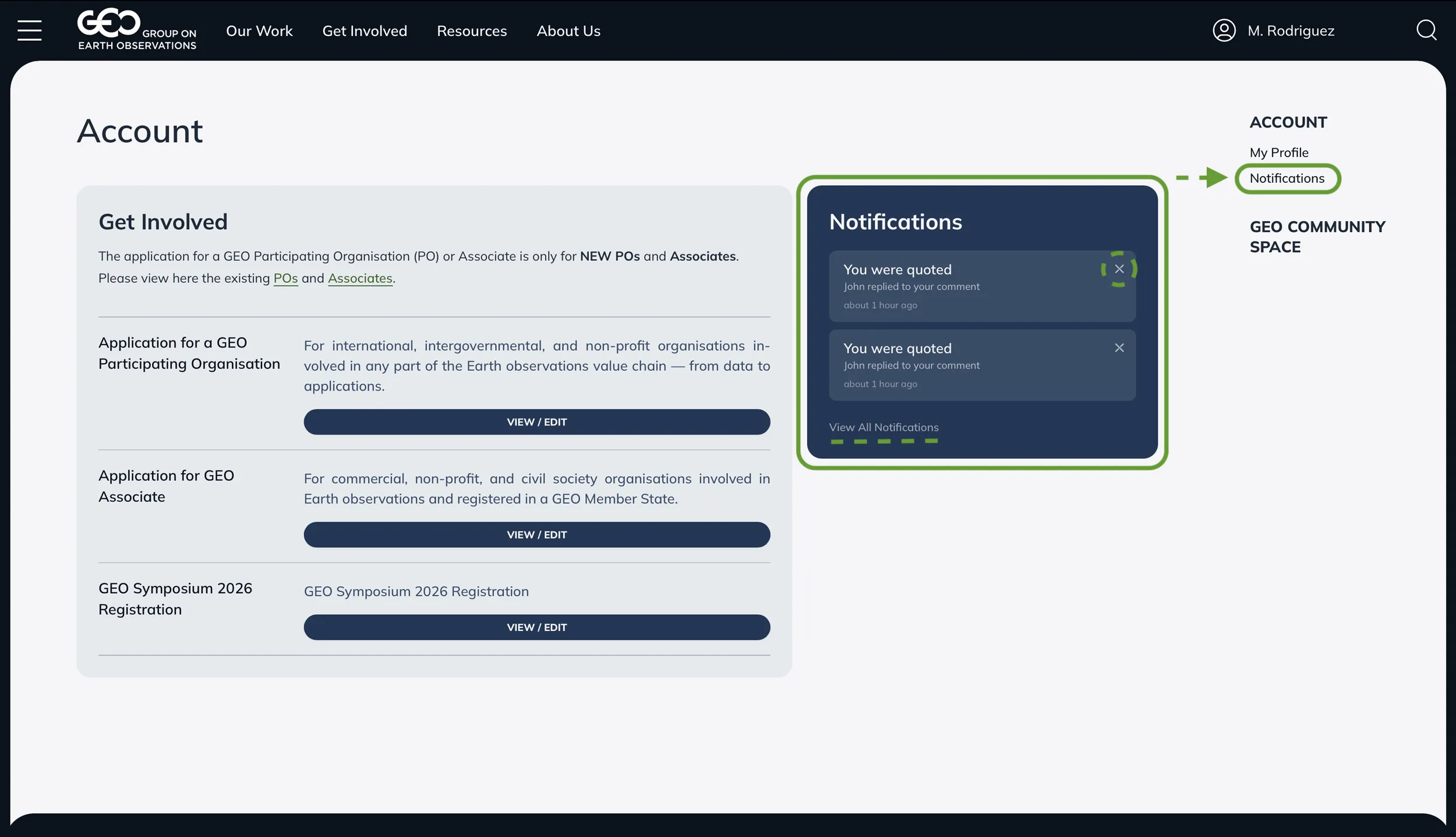
Your recent notification list can be found in the blue Notifications box on your Account dashboard. This box displays your five most recent alerts. You can dismiss a notification directly from this view by clicking the "X" icon. To see your full history, click "View All Notifications" at the bottom of the blue block or select Notifications from the right-hand sidebar menu.
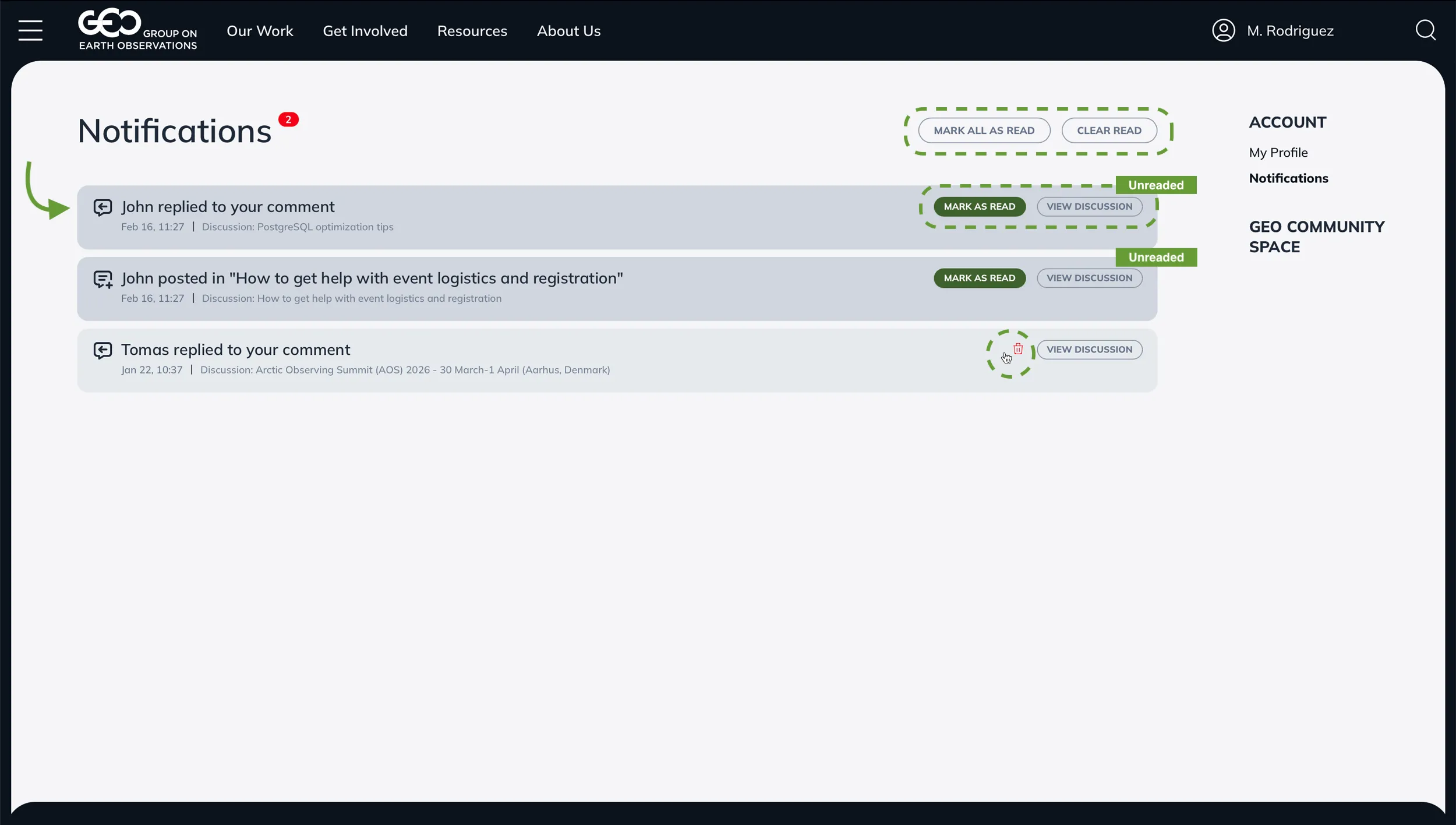
On the Notifications page unread notifications are highlighted with a darker background. To manage your list, click "Mark as Read" on individual items or use the "Mark All as Read" button at the top to update everything at once.
To remove a specific notification, hover over it to reveal the trash can icon and click to delete. You can also clear your history using the "Clear Read" button.
To jump directly to the relevant post, click the "View Discussion" button on any notification.
How to Manage GCS Notifications Settings
Navigate to your Profile page and select the "Notifications Settings" tab to manage your GCS email notifications.
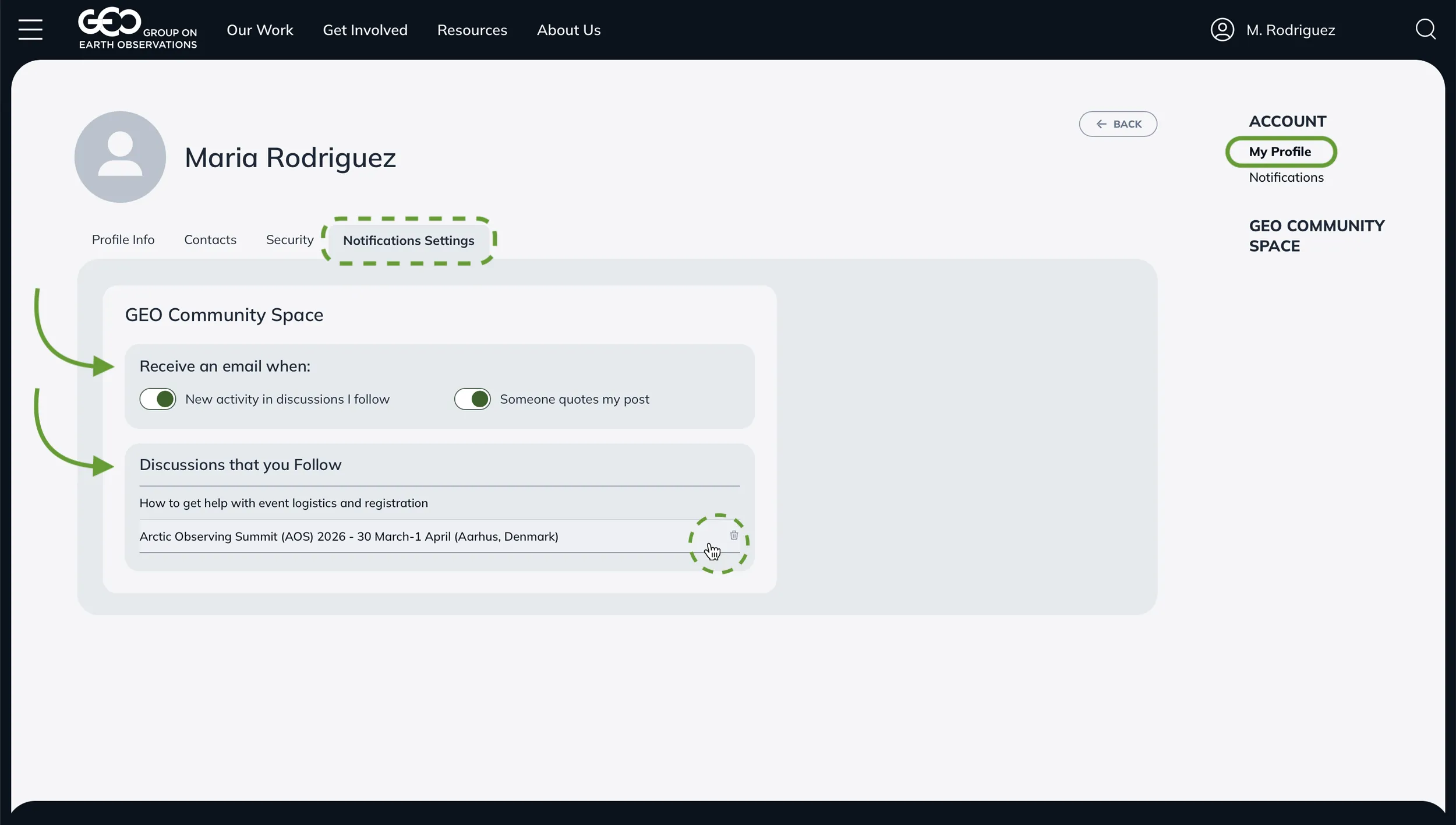
You also can manage the list of discussions that you follow. To stop following and no longer receive notifications for any activity on a discussion, click the trash can button on the right.
To jump directly to the relevant discussion, click the "View Discussion" button on any notification.
Need Assistance?
If you have any questions or need assistance, please contact geo-wp@geosec.org .
Thank you for your contribution to the GEO community.