
How to Propose Changes to Rules of Procedure
Getting Started
Sign in
Access your GEO account using your registered email address and password on the sign in page. If you are unsure how to sign in or encounter any issues during the sign in process, please refer to this page for detailed guidance.
Account Dashboard
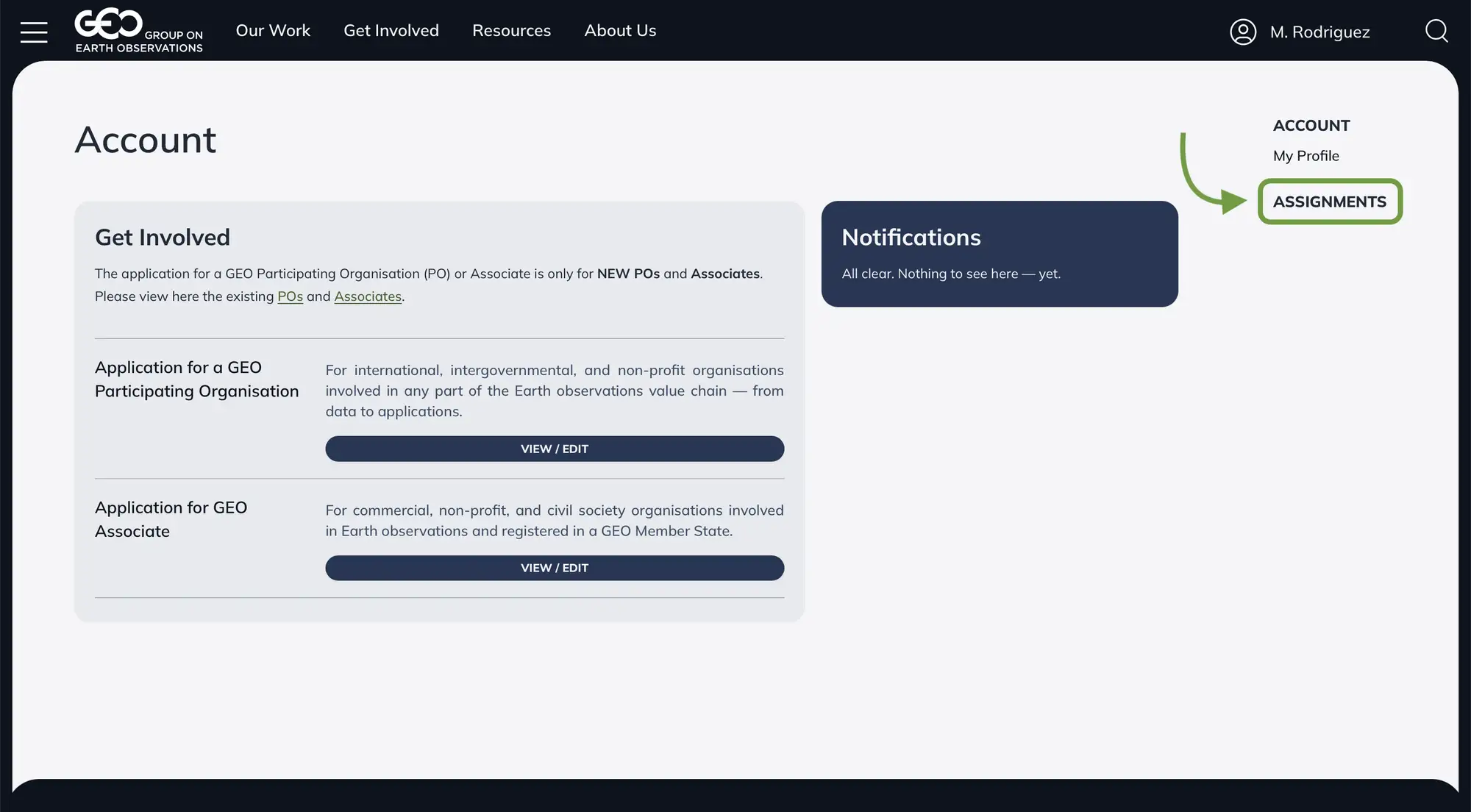
After signing in, you'll see your Account dashboard. Navigate to Assignments using the menu in the top-right corner.
Assignments
The Assignments page displays your role(s) within the organisation and lists your related actions. To propose changes to Rules of Procedure:
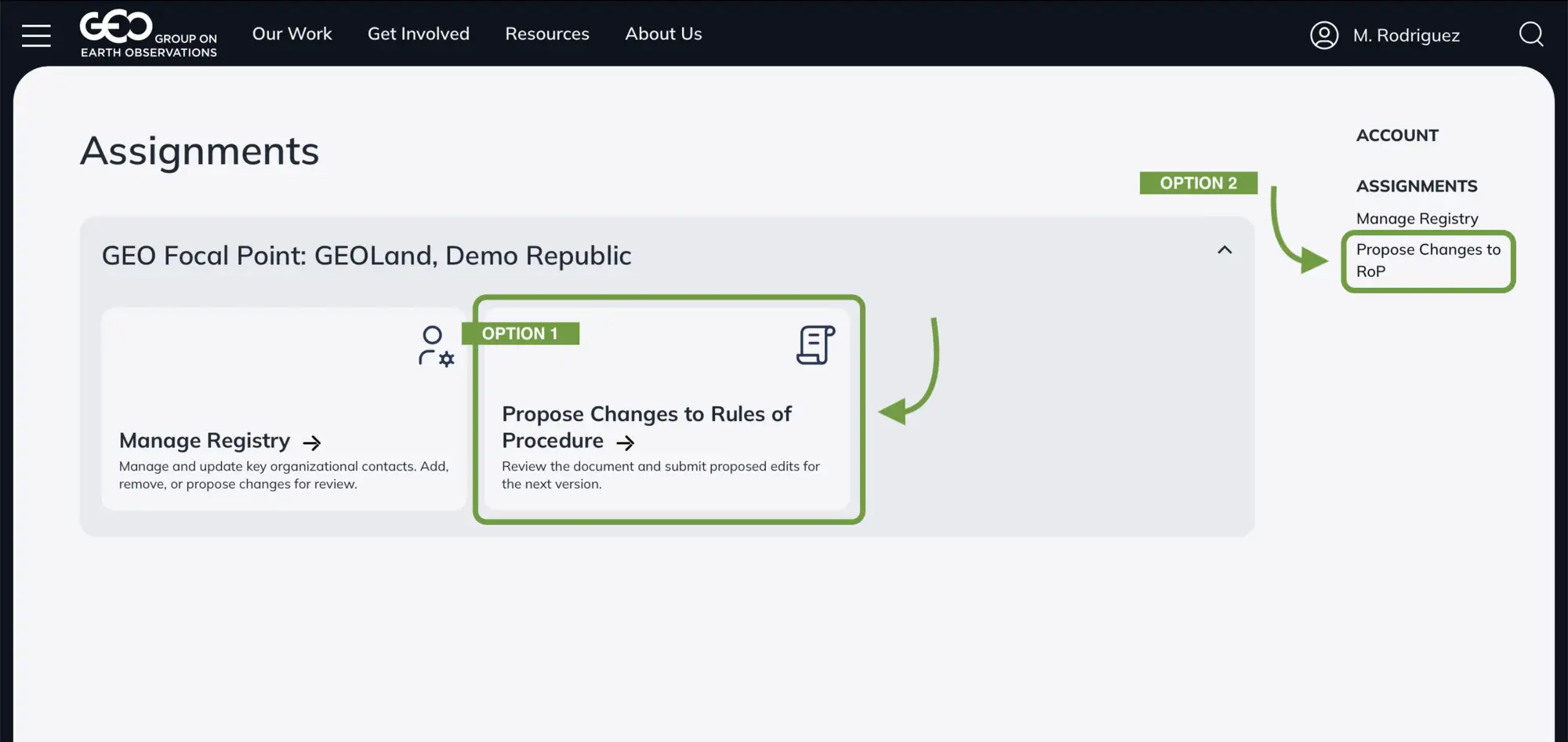
Propose Changes to RoP
This page lists all countries and/or organizations you represent. Choose the organization on whose behalf you want to propose changes by clicking the PROPOSE CHANGES button.
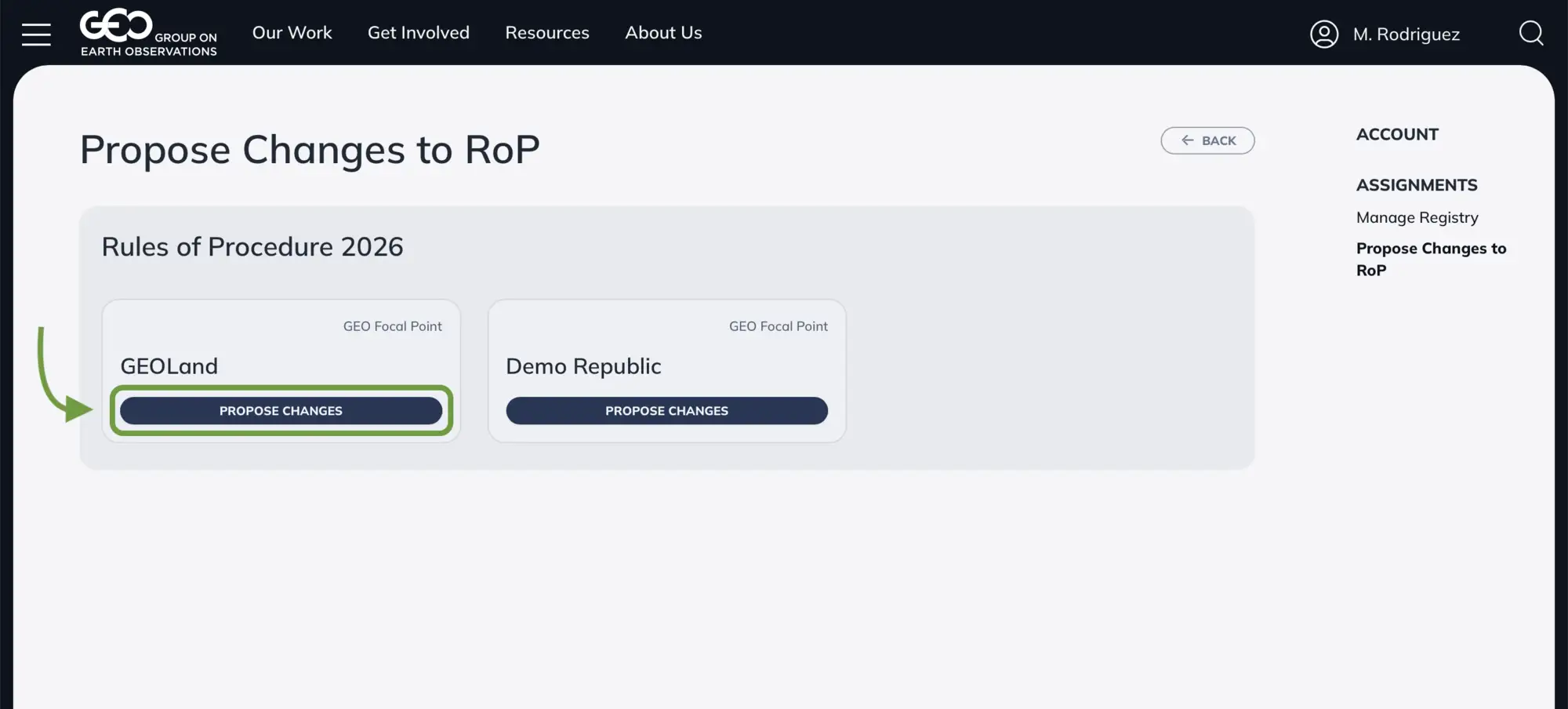
You can only submit proposals on behalf of one organization at a time.
Document Editing Page
The page displays the Rules of Procedure document with numbered paragraphs. Each text block is assigned a sequential number for easy reference and navigation.
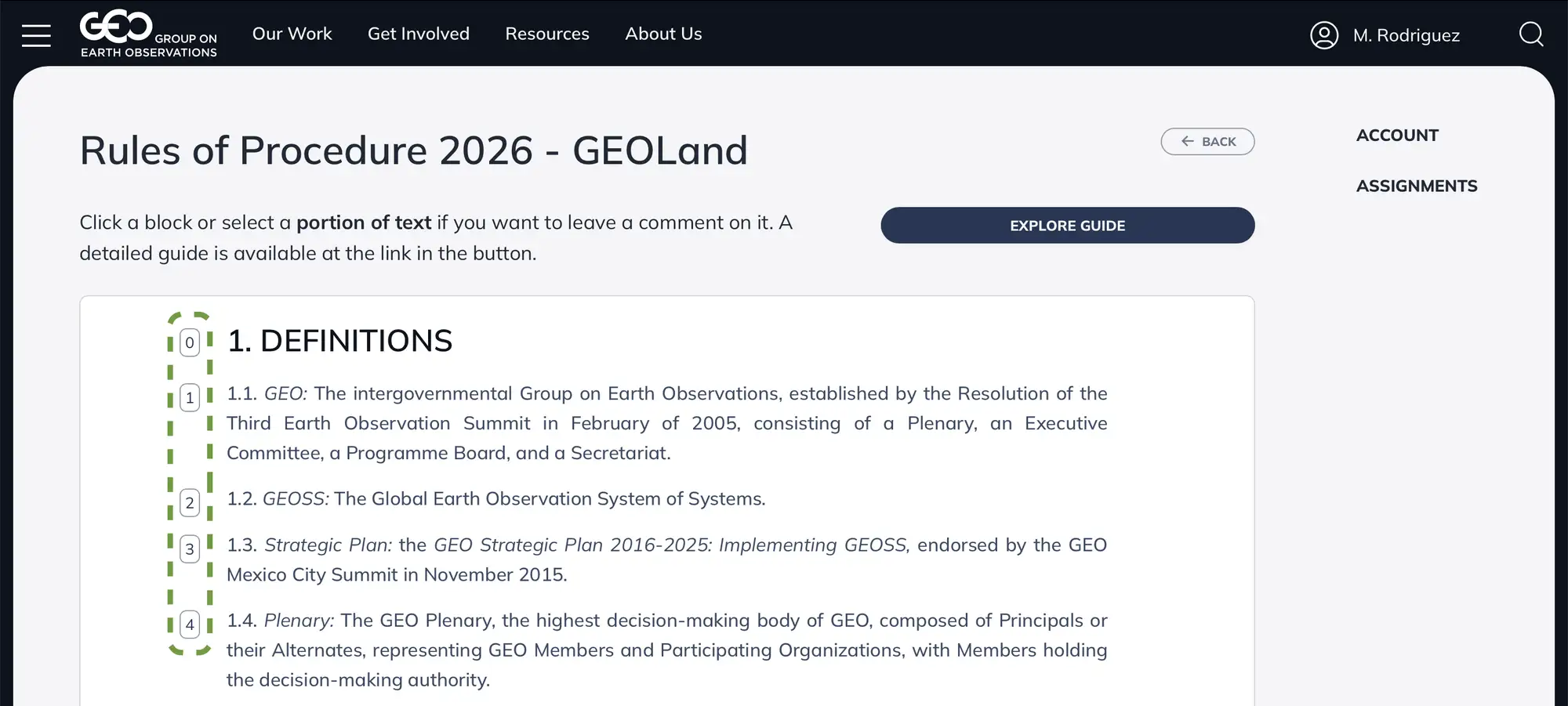
There are two ways to select text for editing:
Option A: Select an Entire Paragraph
- Hover your mouse over any paragraph
- The paragraph will highlight in green
- Click on the highlighted paragraph
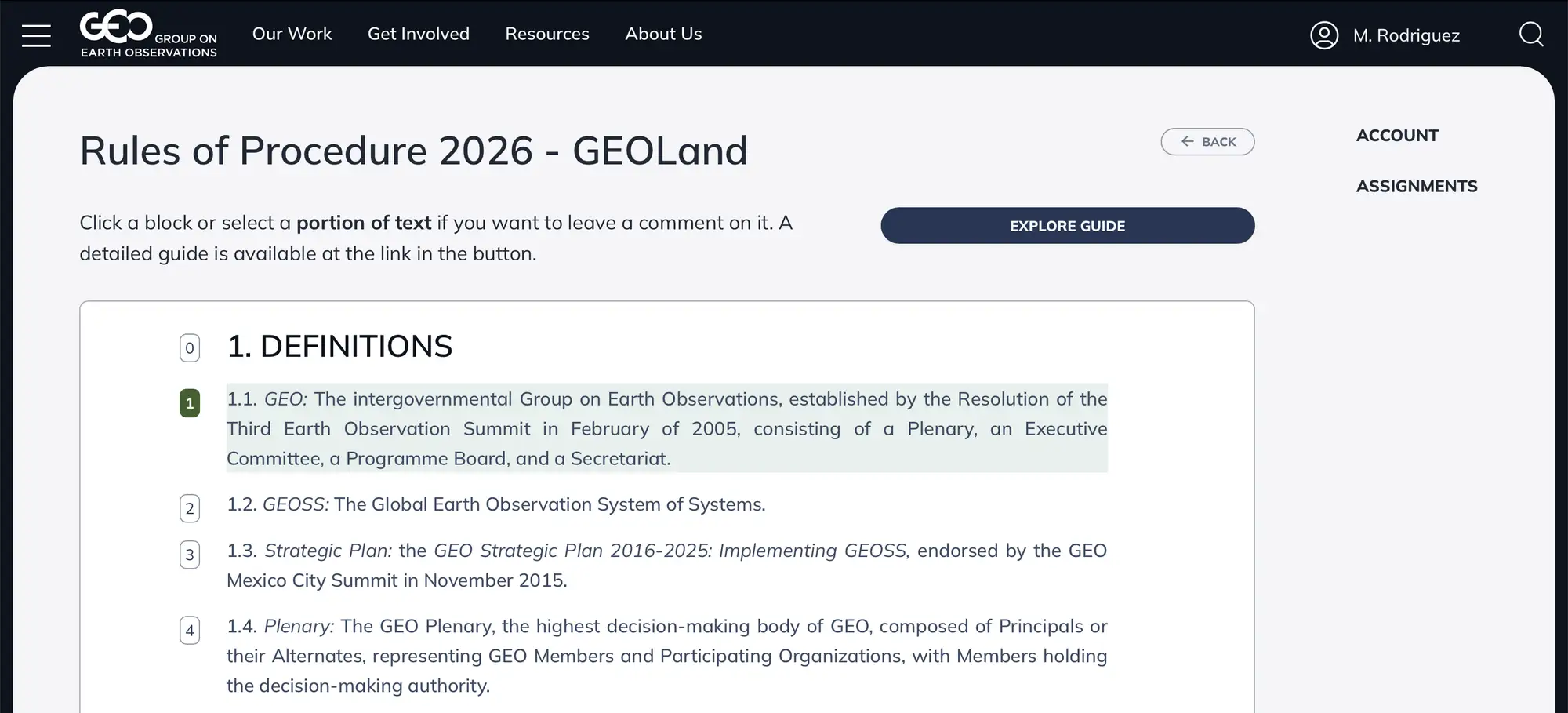
Option B: Select Specific Text
- Hover over a paragraph
- Click and drag to select specific words or phrases within the paragraph
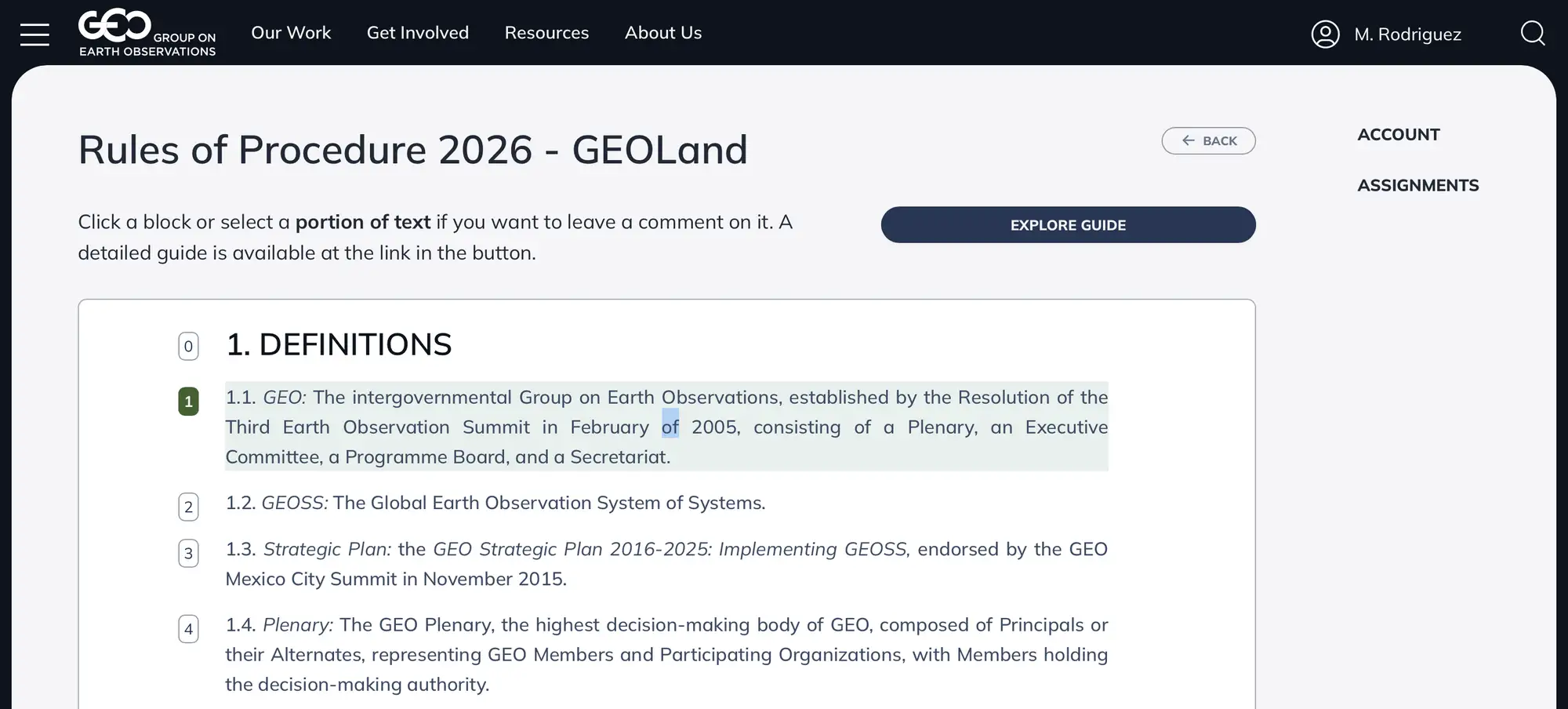
Create Your Proposal
After selecting text, a New Proposal modal window will appear.
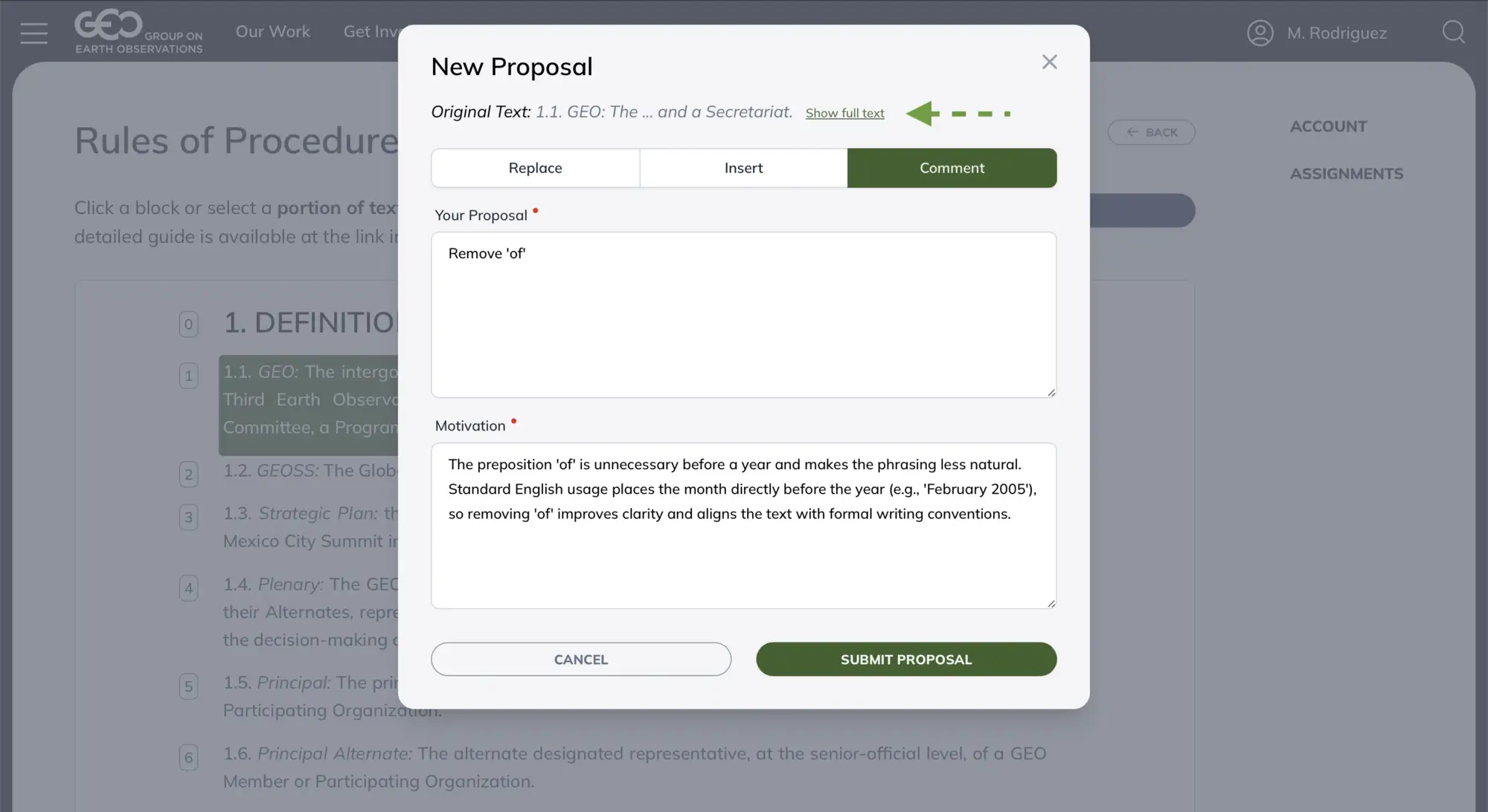
At the top of the modal, the original text you selected is displayed - if the selection is long, it will be truncated with an option to "Show full text."
The modal contains mandatory fields that must be filled out:
- Replace: Substitute the selected text with new text
- Insert: Add new text after the selected text
- Comment: Leave a comment without changing the text
- For Replace: Enter the new text that should replace the original
- For Insert: Enter the text to be added
- For Comment: Enter your comment
Once both fields are complete, click the SUBMIT PROPOSAL button.
Manage Your Proposals
After submission, your proposal will appear directly below the text block it relates to.
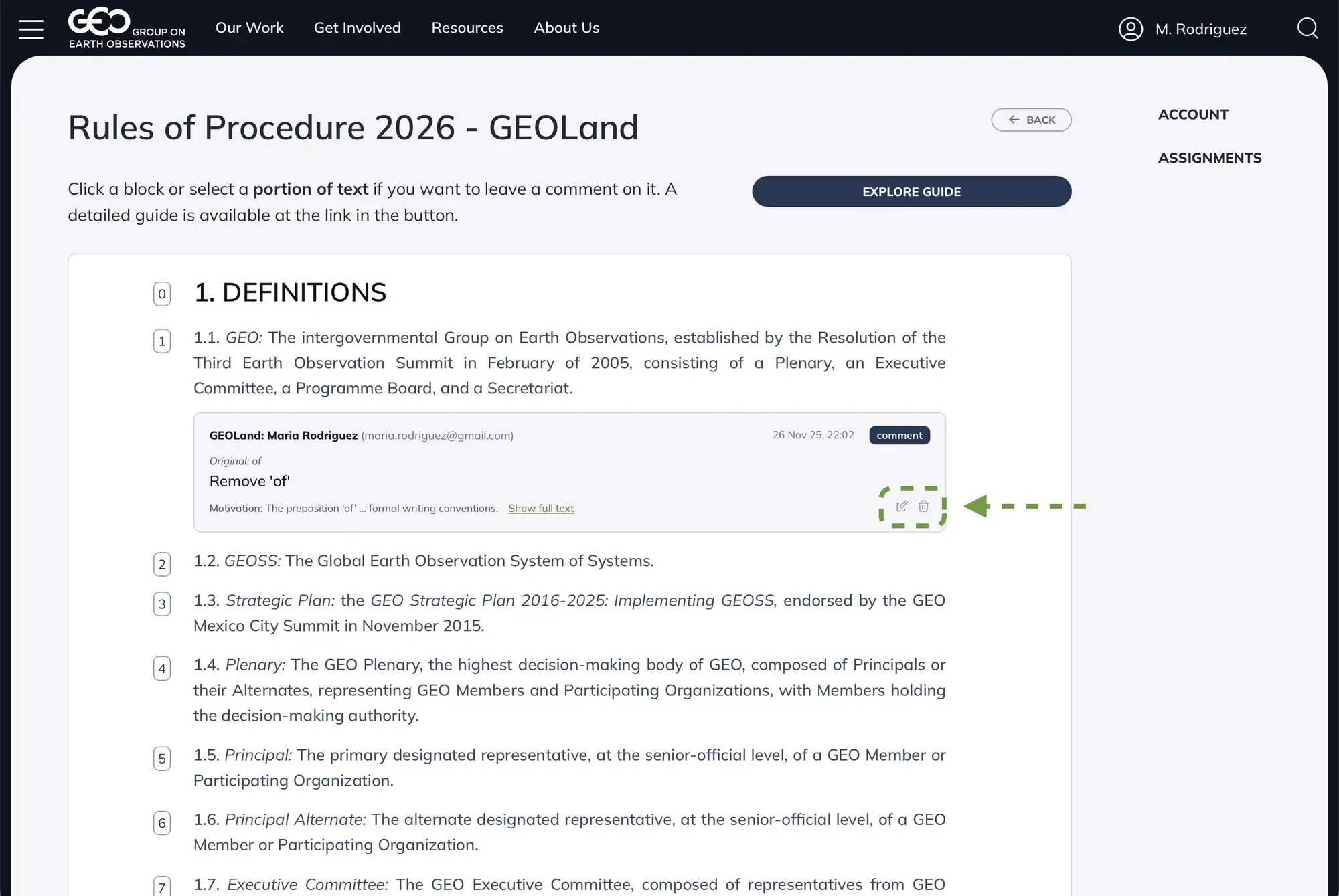
You can modify or remove your proposals at any time using the action buttons:
- Edit icon (pencil): Modify your proposal
- Delete icon (trash): Remove your proposal
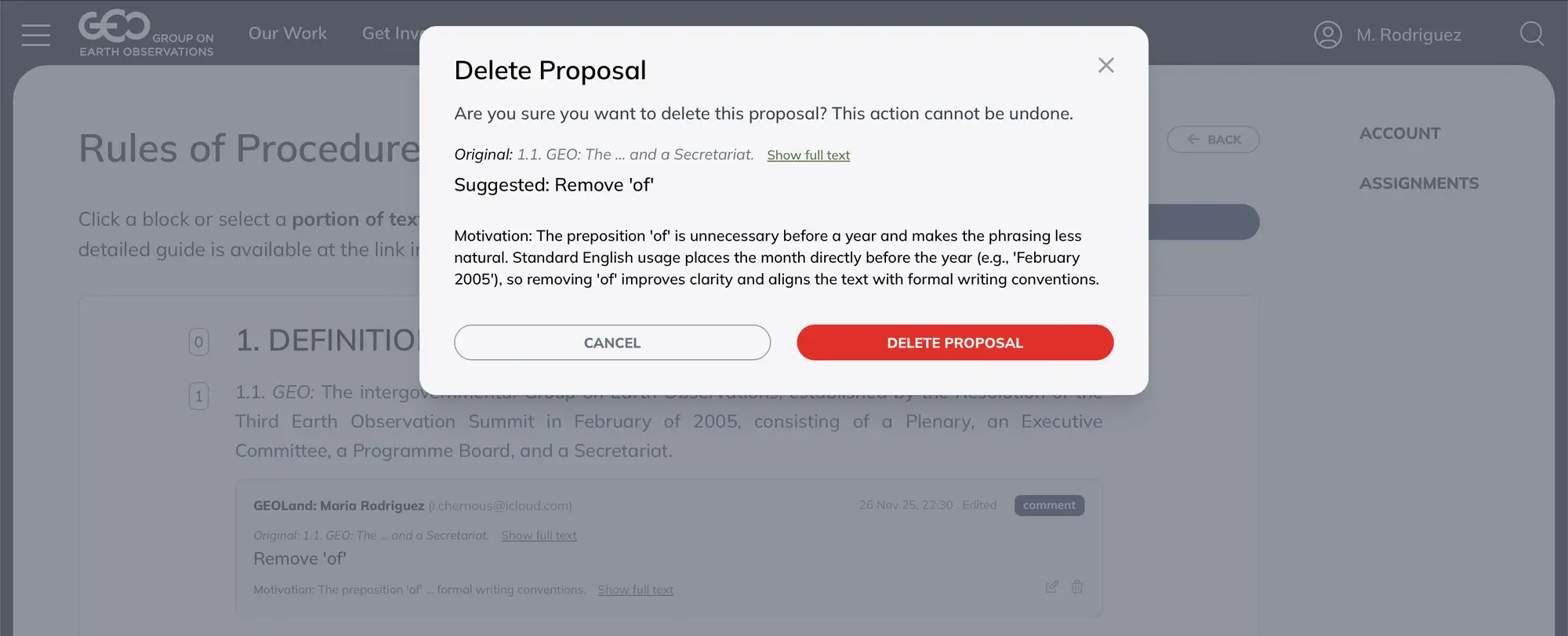
When you click delete, a confirmation dialog will appear to prevent accidental deletions.
Final Notes
Your proposal will be reviewed by the GEO Secretariat and Executive Committee.
If you have any questions or need assistance, please contact the GEO Secretariat.
Thank you for your contribution to the GEO community.